ArchEX 2026.10 (Arch Linux) Live with KDE Plasma 6.7.5-1, Wayland, Refracta Snapshot and Calamares Installer 3.4.2 :: Build 261005
 ABOUT ArchEX 2026.10 Build 261005
I’ve made a new extra version of ArchEX with KDE Plasma 6.7.5-1 – latest version released 260908. Plasma is made to stay out of the way as it helps you get things done. But under its light and intuitive surface, it’s a powerhouse. So you’re free to choose ways of usage right as you need them and when you need them. This ArchEX version uses kernel 7.2.8-arch1-2. ArchEX can very easy be installed to hard drive (if you want) with Calamares Installer version 3.4.2 (latest). I’ve installed Calamares Installer from from the Yay repositories. It means that you can install ArchEX KDE in any language. Everything will then be in your chosen language when the installation has completed.
MOST IMPORTANT: This ArchEX version has Refracta Snapshot pre-installed, which means that you can create your own Arch Linux System with ArchEX as a template. That is you can install ArchEX to hard drive (also in VMware or Qemu), change everything to your liking, fire up Refracta Snapshot and create a new ISO in about five (5) minutes. You’ll find your brand new ISO in /home/snapshot. You can change where you want your ISO to end up by editing /etc/refractasnapshot.conf. You can (for example) change to /mnt/sda5/work and /mnt/sda5/snapshot. That can be useful if you want to create a new ISO while running ArchEX Live. I.e. from a USB stick (using Ventoy). If you have plenty of RAM (32GB?) you can even boot up ArchEX in RAM and create a new ISO without changing /etc/refractasnapshot.conf.
NOTE: The folder work has to be on an EXT4 partition.
Replacement
This ArchEX version replaces five other previous versions.
RUNS from RAM
ArchEX KDE can run LIVE from RAM. Super fast.
Study all installed packages in ArchEX 2026.10 with KDE Plasma 6.7.5-1.
How To dual boot, triple boot or multi boot Linux with Windows in a simple way and be happy
Before installing ArchEX or any other Linux system my general installation instructions may be of interest.
LOG IN to KDE Plasma
Boot up the 261005 Live System and log in from SDDM to the KDE Plasma 6.7.5-1 Desktop. When the boot process is ready you will end up at SDDM’s login screen. Login as user user with password live. You can also log in as root from SDDM. The password for root is root. You will also need the root password for some apps to run. Otherwise you can always use Sudo (to become root).
WAYLAND
Some people think that using Wayland in a Linux System is very important. Wayland is said to be “the modern, simpler, more secure replacement for the aging X11 display server, offering better performance”. I have therefore installed Wayland with the command sudo pacman -S lxqt-wayland-session labwc. You can choose between X11 and Wayland when you login to KDE Plasma from SDDM. X11 is the default display server.
Program Management in Arch Linux
Arch Linux uses a proprietary system called Pacman. It is similar to that found in CRUX Linux. Read about Pacman.
You can also read all the documentation on Arch Linux. Six commands are basically the only ones you need to use:
1) pacman -Sy (update the packages database)
2) pacman -Syu (upgrading the whole system)
3) pacman -S MyUsefulProgram (the package installation command)
4) pacman -S ‐‐overwrite MyUsefulProgram (in case you get an error about “conflicting packages”)
5) pacman -R MyBadProgram (remove a package)
Very simple!
6) pacman -Scc (clean pacman cache)
Note: You can also use Yay – see below.
Errors about archlinux-keyring
If you get errors about keys (for example key A634567E8t6574 could not be looked up remotely) when trying to upgrade your system you shall run the following four commands as root:
rm -R /etc/pacman.d/gnupg/
rm -R /root/.gnupg/
gpg ‐‐refresh-keys
pacman-key ‐‐init && pacman-key ‐‐populate archlinux
pacman-key ‐‐refresh-keys
If that don’t work you can try this approach:
pacman -Sy archlinux-keyring
pacman-key ‐‐populate archlinux
pacman-key ‐‐refresh-keys
pacman -Sy
pacman -Syu
Yay – Yet Another Yogurt – An AUR Helper
If you want to install certain special packages for example Google Chrome and Spotify you can/must install Yay. Study this tutorial about how to install and use Yay – Yet Another Yogurt – An AUR Helper Written in Go. If you want to install new packages through Yay you’ll have to run the command su user before yay -S MyNeededProgram. That is if you’re not logged in as the ordinary user user. (You can’t run Yay as root). Yay is pre-installed in ArchEX Build 261005 (and used to install Calamares).
UEFI/non-UEFI computers
ArchEX Build 261005 is now also for UEFI computers. I.e. before you can run ArchEX live you don’t have to go into BIOS and change Boot Mode to Legacy Support.
LANGUAGE
The default locale/language is English. While installing ArchEX to hard drive using Calamares (ArchEX Installer), you can change the default locale to Swedish or any other language. After the installation all apps will be in your chosen language.
Samba connections
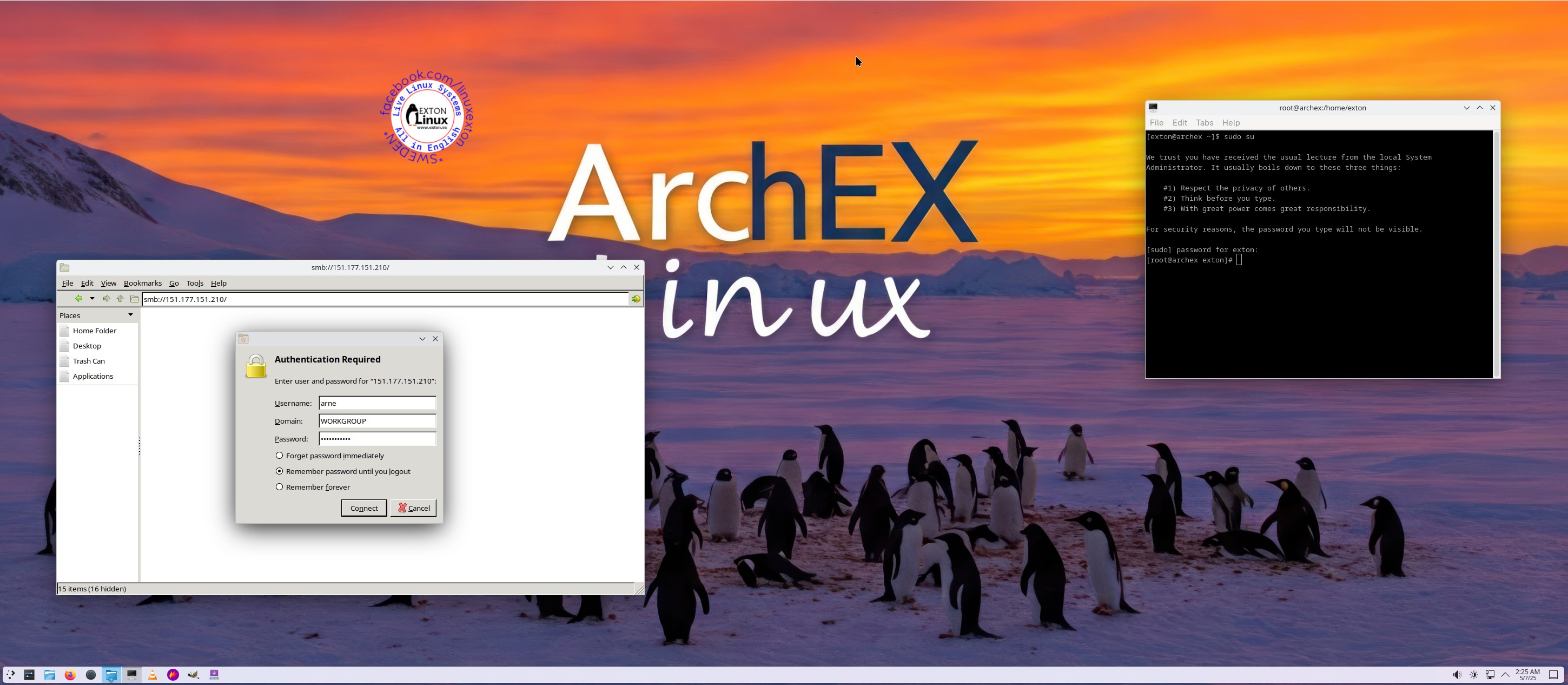
You can connect to your Windows computers in your Home Network through Samba and PCManFM. Watch this screenshot…
Install ArchEX to a USB stick
You cannot use Rufus or Balena Etcher in Windows. Those apps won’t make the ISO file bootable. You can, however, use Ventoy.
No persistence. Watch a screenshot below showing how my Ventoy stick looks today.

Sudo
Ubuntu/Kubuntu/Mint and many other so-called beginner distributions (and other Linux systems) use sudo to do something that requires root (Superuser) privileges. There really is no need for a root password. “Example of Commands”: sudo mkdir /usr/MyFiles. You can also directly become root with sudo su. Read HERE about how Sudo works. I have installed the Sudo program in ArchEX. This means, among other things, that Linux users used to Ubuntu can identify with ArchEX.
VirtualBox/VMware/Qemu
ArchEX KDE works very well in VMware and Qemu. For some unknown reason you can’t run ArchEX KDE in VirtualBox. That is the System will boot up, but it is not usable.
WiFi
Works without problems. Just click on the NetworkManager applet down to the right and connect.
Important about Refracta Snapshot
You can use the Refracta Snapshot (pre-installed) to create your own installable Arch Linux Live System once you have installed ArchEX to hard drive. I mean change everything and then create a whole new Arch Linux/ArchEX ISO file. Start Refracta Snapshot from the menu. You do not even have to install ArchEX to hard drive before you can use the Refracta Snapshot. If you have plenty of RAM you can create a new (your own!) Arch Linux system while running ArchEX from a USB stick. Please note that the whole Refracta process (creating your new ISO) only will take 5 – 10 minutes! You will find the ISO in /home/snapshot. Or edit /etc/reafractasnapshot.conf and decide where you want the created ISO to end up. The whole thing is very simple.
IMPORTANT NOTE: You can only use Refracta Snapshot with “my” special kernel 7.2.8-amd64-exton. I.e. it won’t be possible if you use Arch Linux’s original kernel. Once you have installed ArchEX to hard drive you can (of course) switch to Arch Linux’s kernel 7.2.8-arch1-2 (as of 261005) if you like. As a matter of fact kernel 7.2.8-arch1-2 will be the default kernel if you install ArchEX to hard drive. Be sure to keep “my” kernel 7.2.8-amd64-exton if you want to use Refracta Snapshot. Also the links /vmlinuz and /initrd.img to said kernel.
Rolling distribution
Arch Linux/ArchEX are rolling distributions, which implies that once you have installed the system on the hard drive there is no need for re-installations (which otherwise is common in the Linux world).
WHO should run Arch Linux?
My answer: The system fits the “advanced” Linux user/enthusiast, who would be willing to run an occasional command from time to time.
BENEFITS of ArchEX/Arch Linux
“Cutting Edge”-software and speed. You will for example always run the latest kernel if you upgrade ArchEX/Arch (for example) every month.
SCREENSHOTS
ArchEX Plasma Desktop for user
Showing the Live boot screen
ArchEX running Calamares Installer as user
Refracta Snapshot is ready
DOWNLOAD
ArchEX Linux Live Systems (all three versions) can be downloaded from SourceForge.net – Fast, secure and free downloads from the largest Open Source applications and software directory.

md5sum for the ISO file, which is of 2910 MB – Build 261005

RaspArch Build 260111 for Raspberry Pi 5
RaspArch is a “ready-to-go” ARM (aarch64/arm64) system. It can only run on a Raspberry Pi 5 computer. All included packages have been updated to the latest version as of 260111. The Desktop Environment is LXQt 2.3.
A member on RaspEX wrote this about an old version of RaspArch: I’ve used Slackware, Debian, Gentoo, Ubuntu & Arch. I prefer Arch. Ubuntu is easier to install, Arch is easier to keep up to date. You do not go through big, painful, changes every year instead you just update, once in a while, make changes if instructed. Arch has most of the benefits of Gentoo without the pain of recompiling _everything_. When you do need to build a package in Arch its painless especially if you use one of the tools that support AUR (I like Yaourt). Arch avoids the politics of Debian and Ubuntu and delivers a great Linux distribution. RaspArch now brings these advantages to the Pi 3.
Screenshot of RaspArch’s Desktop

and