ArchEX (Arch Linux) Live System with Wayland, Hyprland, KDE Plasma, LXQt, Refracta Snapshot, Calamares 3.4.2 and kernel 7.2.11/7.3.4-arch1-1 :: Build 261115
 ABOUT ArchEX Build 261115
I’ve made a new extra version of ArchEX with the Hyprland 0.57.2 Desktop Environment together with KDE Plasma 6.8.2-1 and LXQt 2.5.0.
MOST IMPORTANT: This ArchEX version has Refracta Snapshot pre-installed, which means that you can create your own Arch Linux System with ArchEX as a template. That is you can install ArchEX to hard drive (also in VirtualBox, VMware or Qemu), change everything to your liking, fire up Refracta Snapshot and create a new ISO in about five (5) minutes. You’ll find your brand new ISO in /home/snapshot. You can change where you want your ISO to end up by editing /etc/refractasnapshot.conf. You can (for example) change to /mnt/sda5/work and /mnt/sda5/snapshot. That can be useful if you want to create a new ISO while running ArchEX Live. I.e. from a USB stick (using Ventoy). If you have plenty of RAM (32GB?) you can even boot up ArchEX in RAM and create a new ISO without changing /etc/refractasnapshot.conf.
NOTE: The folder work has to be on an EXT4 partition.
Calamares Installer
This ArchEX version has Calamares Installer installed. Using Calamares means that you can install ArchEX Hyprland in any language. Everything will then be in your chosen language when the installation has completed.
Study all installed packages in Build 261115…
Log in to Hyprland/KDE Plasma/LXQt
When the boot process is ready you will end up at SDDM‘s login page. Log in as the ordinary user user with password live. You cannot login as root, but the password for root is root. While logged in as user you can use Sudo to become root. Example command: sudo pcmanfm-qt.
ABOUT Hyprland
Hyprland is a dynamic tiling Wayland compositor built on top of wlroots. It focuses heavily on modern visuals, fluid animations, and extensive customizability while maintaining high performance.
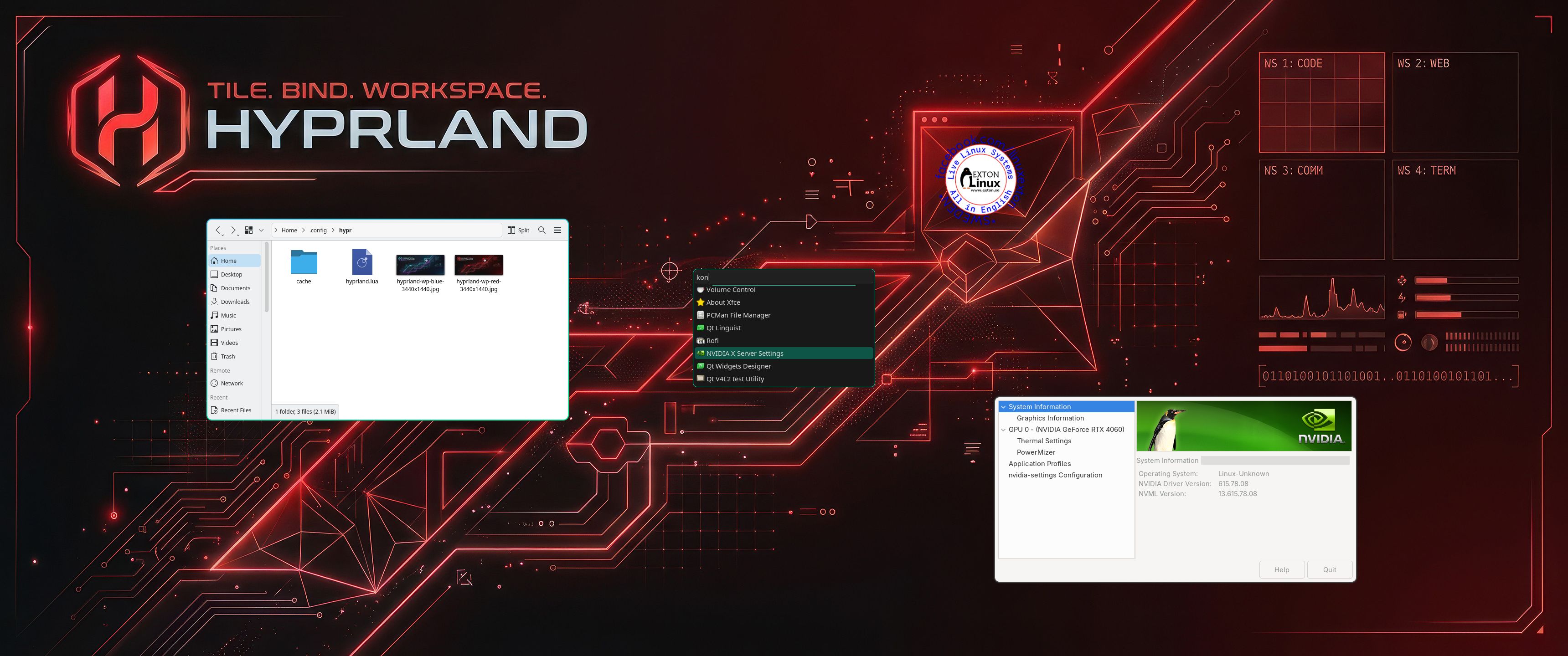
IMPORTANT NOTE: ArchEX with Hyprland/KDE Plasma works very well when running LIVE on my newest four computers – using kernel 7.2.11-amd64-exton – with one exception. On my newest computer with an Nvidia GeForce RTX 4060 graphics card Hyprland and KDE Plasma with Wayland could not run LIVE. Both DE’s ran very well while installed to hard drive though. That is when using kernel 7.3.4-arch1-1, which has support for newer NVIDIA Graphics cards.
Hyprland: Overview & Key Features (AI generated)
Hyprland is a dynamic tiling Wayland compositor built on top of wlroots. It focuses heavily on modern visuals, fluid animations, and extensive customizability while maintaining high performance.
1. Visuals & Aesthetics
-
Fluid Animations: Smooth, physics-based window opening, closing, moving, and resizing animations configured directly via bezier curves.
-
Modern Window Styling: Native support for rounded corners, customizable window borders, shadows, and adjustable transparency/opacity.
-
Glassmorphism: Advanced graphical effects including real-time Kawase window blur and backdrop filters.
2. Layouts & Window Management
-
Dynamic Tiling: Automatically arranges windows to maximize screen real estate without manual placement.
-
Multiple Layout Engines:
-
Dwindle: Splits windows recursively (spiral-like tree structure).
-
Master: Places a master window on one side and stacks the rest on the other.
-
-
Floating Mode: Easily toggle any window into a floating, freely movable state with custom keybindings or rules.
3. Wayland Performance & Hardware Integration
-
Wlroots Foundation: Leverages the stable, mature
wlrootslibrary for robust input handling, renderer abstraction, and protocol implementation. -
Multi-Monitor & Scaling: Excellent support for multi-monitor setups with independent workspaces, varied resolutions, and fractional scaling.
-
Variable Refresh Rate (VRR): Supports G-Sync / FreeSync for tear-free gaming and fluid desktop rendering.
4. Configuration & Extensibility
-
Plain-Text Config (
hyprland.conf): Intuitive, clean configuration file supporting live reloading (changes apply instantly without restarting the session). -
IPC & Scripting: Powerful Inter-Process Communication (IPC) socket allowing custom scripts, status bar integrations, and keybinding automation.
-
Plugin Ecosystem: Supports custom plugins via a C++ plugin API to extend functionality, add new layouts, or modify core behaviors.
5. Native Ecosystem Utilities
Hyprland is complemented by a suite of matching tools designed specifically for its ecosystem:
-
Hyprpaper: Fast, lightweight wallpaper utility.
-
Hyprlock / Hypridle: Modern screen locker and idle management daemons.
-
Waybar / Eww: Highly compatible status bars for system monitoring and workspace navigation.
Essential Commands & Keybindings in Hyprland
-
Open Terminal:
SUPER + T(orSUPER + ENTER) -
Application Launcher (Rofi / Wofi):
SUPER + SPACE(orSUPER + D) -
Close Active Window:
SUPER + Q(orALT + F4) -
Exit / Log out of Hyprland:
SUPER + M(orSUPER + SHIFT + E) -
Launch Web Browser:
SUPER + F(or via the application launcher)
Window Management & Navigation
-
Change Window Focus:
SUPER + Arrow Keys(orSUPER + H/J/K/L) -
Move Active Window:
SUPER + SHIFT + Arrow Keys(orSUPER + SHIFT + H/J/K/L) -
Switch Workspace:
SUPER + [1-9] -
Move Window to Workspace:
SUPER + SHIFT + [1-9] -
Toggle Floating / Tiling Mode:
SUPER + V -
Toggle Fullscreen:
SUPER + F(orSUPER + SHIFT + F)
Multimedia & Hardware Controls
-
Volume Up / Down:
XF86AudioRaiseVolume/XF86AudioLowerVolume -
Mute Audio:
XF86AudioMute -
Screen Brightness Up / Down:
XF86MonBrightnessUp/XF86MonBrightnessDown
Screenshots
-
Capture Fullscreen / Selection:
PRINTorSUPER + S(depending on the configured utility, such asgrim+slurp)
NOTE: SUPER is the Windows key.
Program Management in Arch Linux
Arch Linux uses a proprietary system called Pacman. It is similar to that found in CRUX Linux. Read about Pacman.
You can also read all the documentation on Arch Linux. Six commands are basically the only ones you need to use:
1) pacman -Sy (update the packages database)
2) pacman -Syu (upgrading the whole system)
3) pacman -S MyUsefulProgram (the package installation command)
4) pacman -S ‐‐overwrite MyUsefulProgram (in case you get an error about “conflicting packages”)
5) pacman -R MyBadProgram (remove a package)
Very simple!
6) pacman -Scc (clean pacman cache)
Note: You can also use Yay – see below.
Yay – Yet Another Yogurt – An AUR Helper
If you want to install certain special packages for example Google Chrome and Spotify you can/must install Yay. Study this tutorial about how to install and use Yay – Yet Another Yogurt – An AUR Helper Written in Go. If you want to install new packages through Yay you’ll have to run the command su user before yay -S MyNeededProgram. If you’re not logged in as the ordinary user user. (You can’t run Yay as root). Yay is pre-installed in ArchEX Build 261115.
NOTE: After installation of ArchEX to hard drive you must re-install Calamares (if you want to build your own Arch Linux System). That is done the the command yay -Sy followed by yay -S calamares. Run the commands as a normal user. (I.e. not as root).
VirtualBox/VMware/Qemu
ArchEX Hyprland works very well in VMware and Qemu.You can also run the System in VirtualBox if you enable 3D Acceleration in Settings.
WiFi
Works without problems. Just click on the NetworkManager applet down to the right (in LXQt and KDE Plasma) and connect.
Samba connections
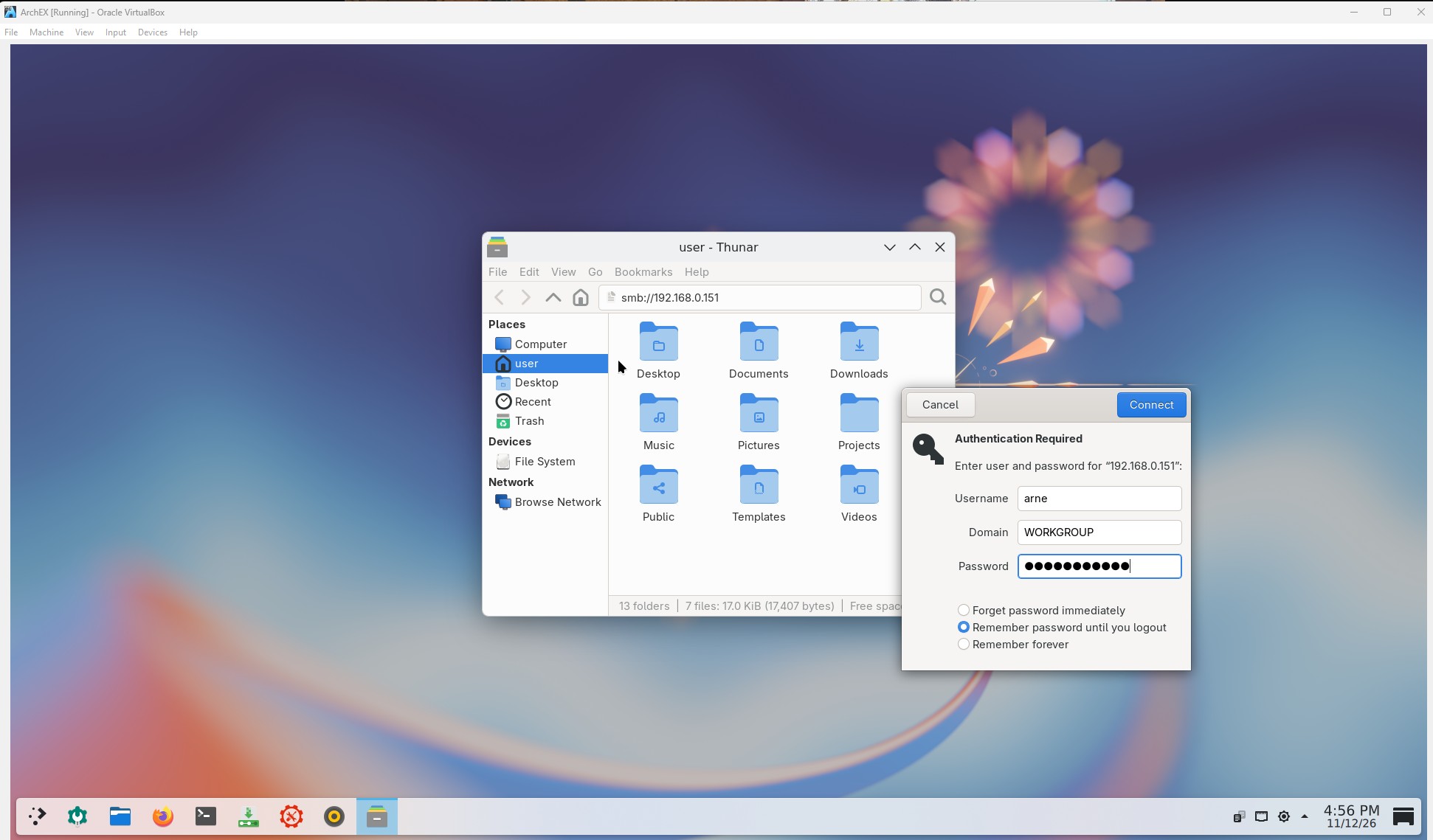
You can connect to your Windows computers in your Home Network through Samba and PCManFM-qt. Watch this screenshot…
Install ArchEX to a USB stick
Use Rufus or Ventoy i Windows.
Important about Refracta Snapshot
You can use the Refracta Snapshot (pre-installed) to create your own installable Arch Linux Live System once you have installed ArchEX to hard drive. I mean change everything and then create a whole new Arch Linux/ArchEX ISO file. Start Refracta Snapshot from the menu. You do not even have to install ArchEX to hard drive before you can use the Refracta Snapshot. If you have plenty of RAM you can create a new (your own!) Arch Linux system while running ArchEX from a USB stick. Please note that the whole Refracta process (creating your new ISO) only will take 5 – 10 minutes! You will find the ISO in /home/snapshot. Or edit /etc/refractasnapshot.conf and decide where you want the created ISO to end up. The whole thing is very simple.
NOTE1: You can only use Refracta Snapshot with “my” special kernel 7.2.11-amd64-exton. I.e. it won’t be possible if you use Arch Linux’s original kernel. Once you have installed ArchEX to hard drive you can (of course) switch to Arch Linux’s kernel 7.3.4-arch1-1 (as of 261115) if you like. As a matter of fact kernel 7.3.4-arch1-1 will be the default kernel if you install ArchEX to hard drive. But be sure to keep “my” kernel 7.2.11-amd64-exton if you want to use Refracta Snapshot. Also the links /vmlinuz and /initrd.img to said kernel.
NOTE2: Kernel 7.3.4-arch1-1 has support for newer Nvidia graphics cards, which is very important if your computer has an Nvidia card and you want to run Hyprland and KDE Plasma with Wayland smoothly.
SCREENSHOTS
1. The Hyprland Desktop for the ordinary user user
2. Running Samba in KDE Plasma
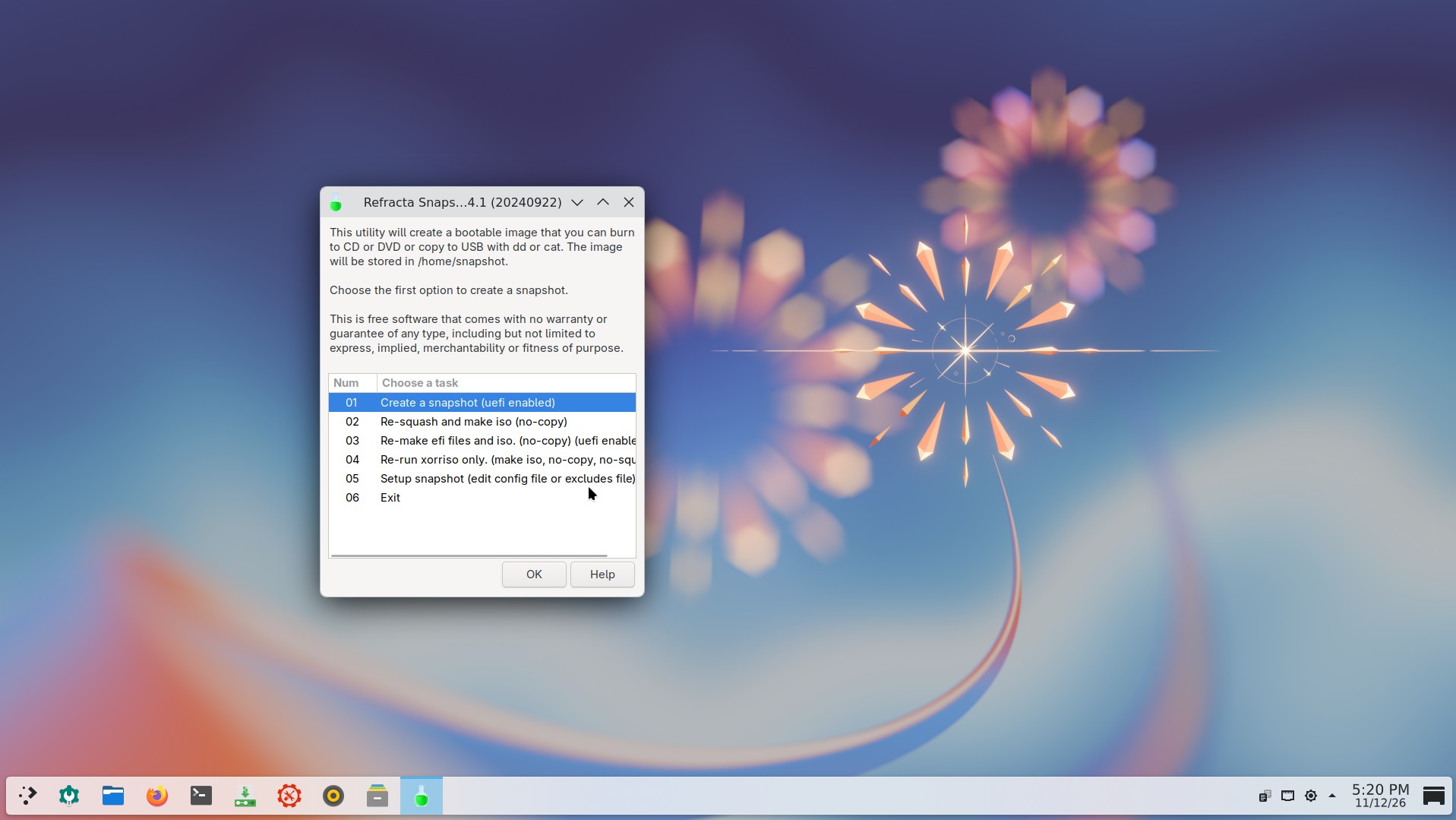
3. Using Refracta Snapshot
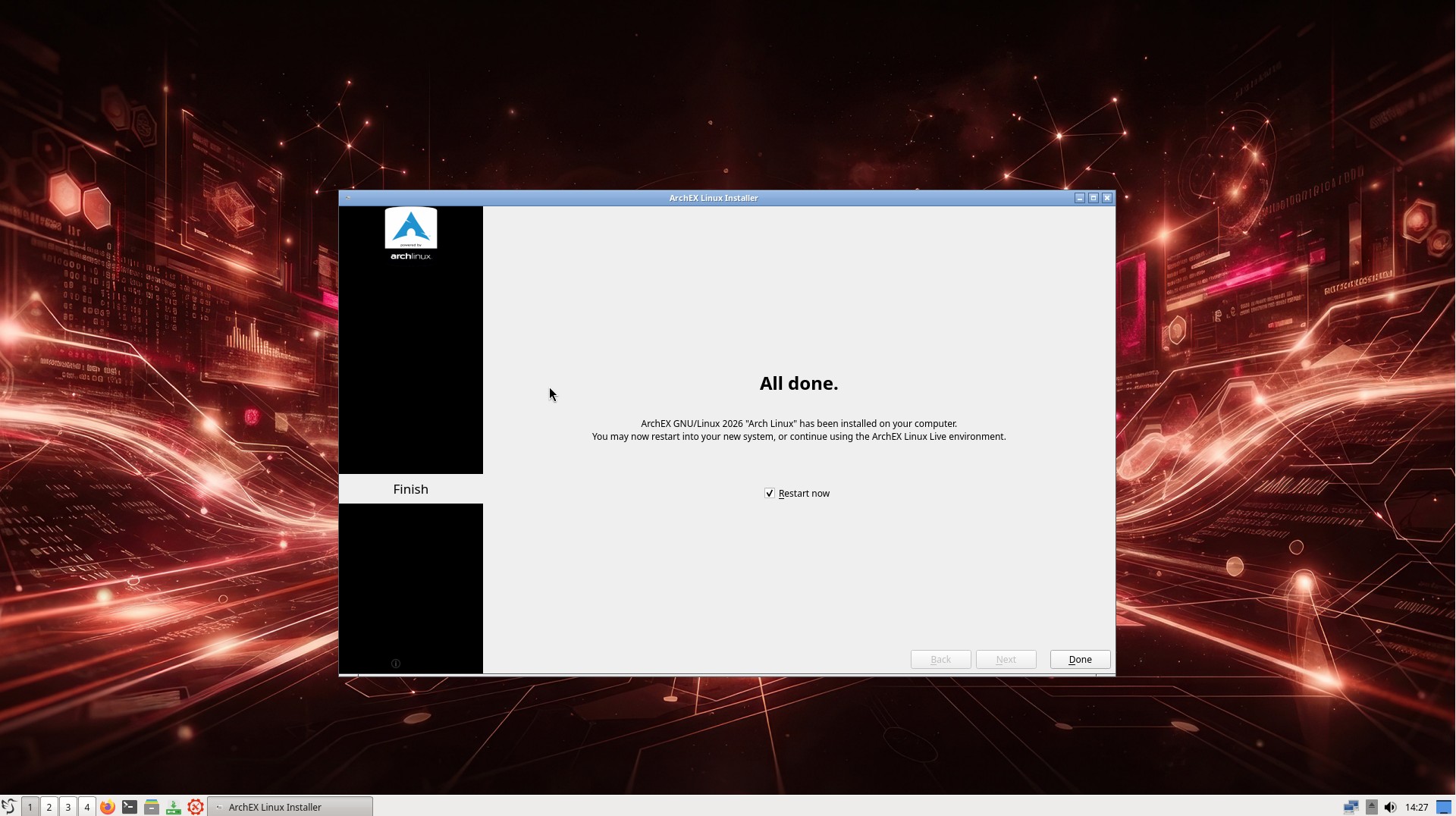
4. Calamares is ready
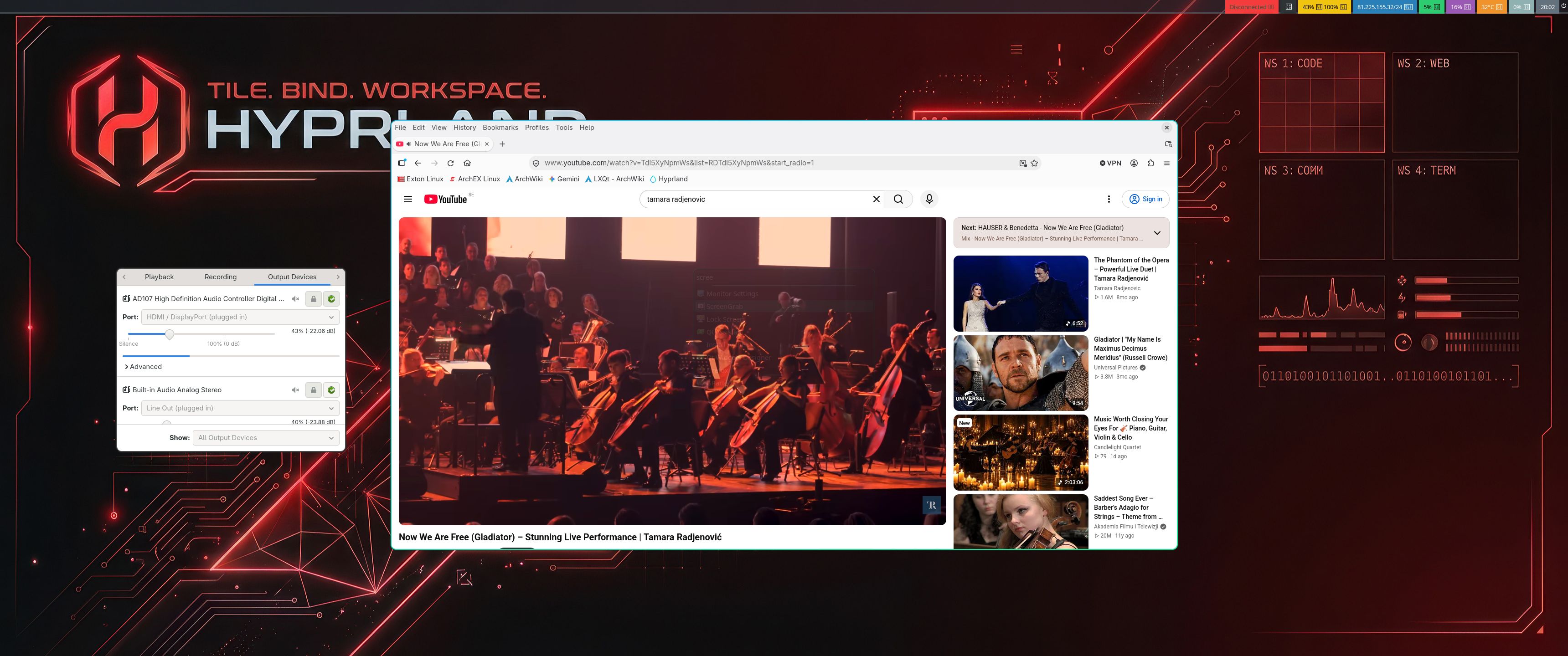
5. Running YouTube and Pavucontrol in Hyprland
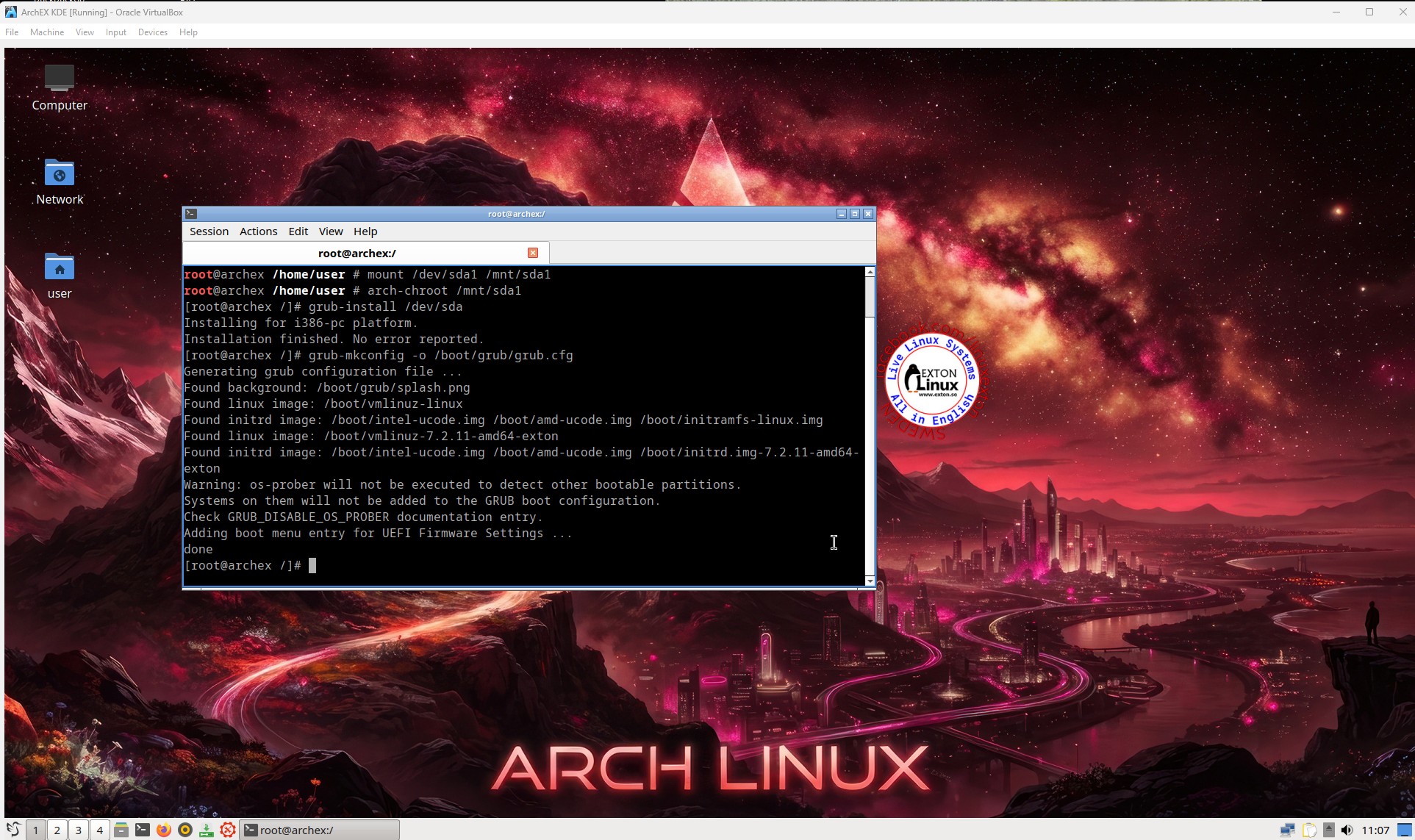
6. Installing Grub in VirtualBox
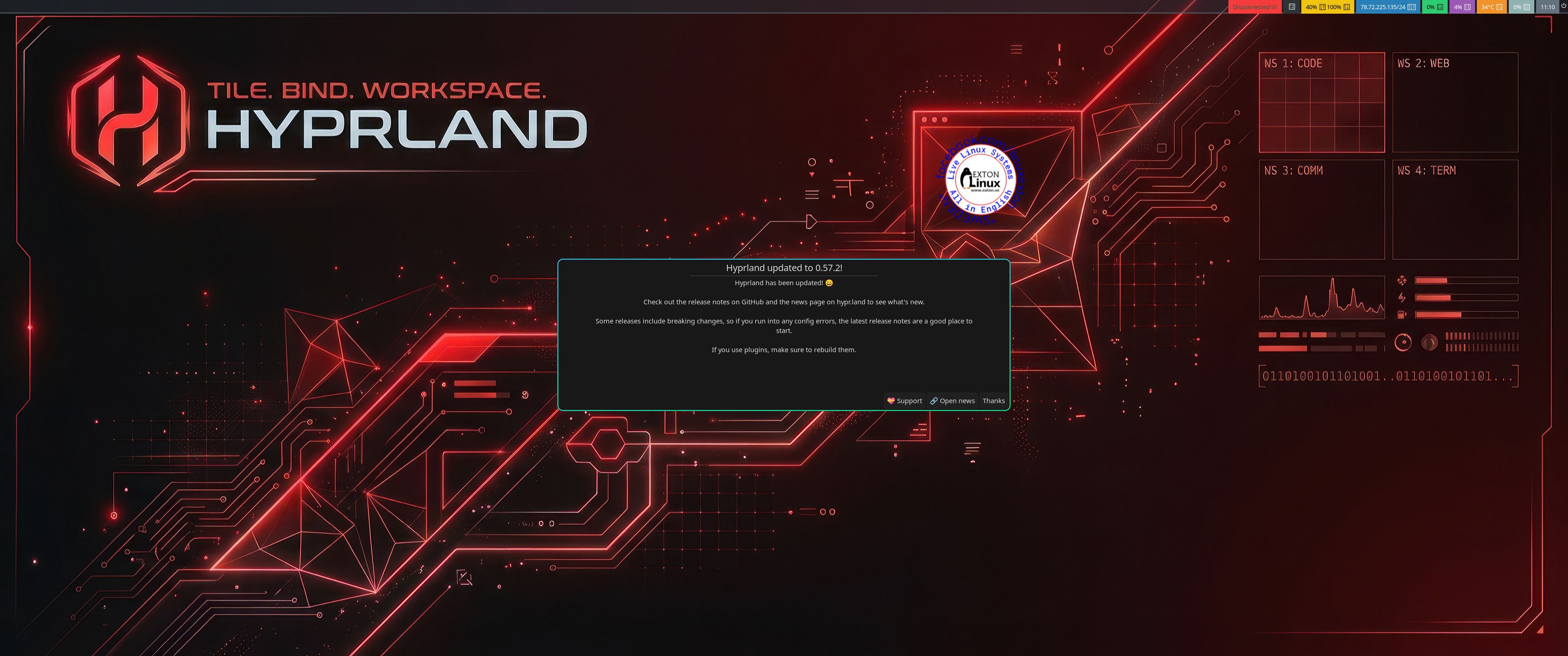
7. The first screen in Hyprland
DOWNLOAD
ArchEX Linux Live Systems (all four versions) can be downloaded from SourceForge.net – Fast, secure and free downloads from the largest Open Source applications and software directory.

md5sum for the ArchEX Hyprland ISO file which is of 4120 MB

RaspArch Build 260111 for Raspberry Pi 5
RaspArch is a “ready-to-go” ARM (aarch64/arm64) system. It can only run on a Raspberry Pi 5 computer. All included packages have been updated to the latest version as of 260111. The Desktop Environment is LXQt 2.3.
A member on RaspEX wrote this about an old version of RaspArch: I’ve used Slackware, Debian, Gentoo, Ubuntu & Arch. I prefer Arch. Ubuntu is easier to install, Arch is easier to keep up to date. You do not go through big, painful, changes every year instead you just update, once in a while, make changes if instructed. Arch has most of the benefits of Gentoo without the pain of recompiling _everything_. When you do need to build a package in Arch its painless especially if you use one of the tools that support AUR (I like Yaourt). Arch avoids the politics of Debian and Ubuntu and delivers a great Linux distribution. RaspArch now brings these advantages to the Pi 3.
Screenshot of RaspArch’s Desktop
and